


Change These Vlc Settings for Best Video Quality Possible

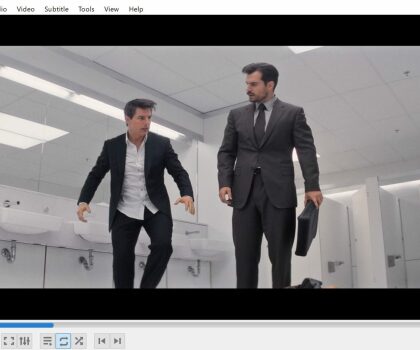
VLC media player is a popular and free multimedia player that supports a wide range of audio and video formats. It’s an excellent choice for playing videos on your computer, but did you know that it also offers a range of settings that can help you optimize the video quality?
In this article, we’ll explore some of the best VLC settings for getting the best video quality possible.
- Enable Hardware Acceleration The first thing you should do is enable hardware acceleration. This option uses your computer’s graphics card to help process video playback, resulting in smoother and better quality video. To enable hardware acceleration, go to Tools > Preferences > Input/Codecs and select “Hardware-accelerated decoding” under the “Codecs” section.
- Adjust Video Output Settings Next, you’ll want to adjust the video output settings to ensure the best possible quality. Go to Tools > Preferences > Video and select “OpenGL video output” under the “Output” section. You can also experiment with other output options, such as DirectX, but OpenGL tends to be the most reliable.
Under the “Output” section, you can also adjust the “Deinterlacing” option to “Blend” or “Bob” to reduce visual artifacts in interlaced video.
- Increase Video Quality VLC also offers several options to increase the quality of your video. To access these options, go to Tools > Preferences > Video and select the “Filters” tab. Here you can enable options like “Sharpen” and “Anti-Flickering” to improve the overall quality of your video.
- Use the Equalizer If you’re looking to improve the audio quality of your video, VLC’s built-in equalizer can be a powerful tool. To access the equalizer, go to Tools > Effects and Filters > Audio Effects and select the “Equalizer” tab. From here, you can adjust the levels of different frequency bands to fine-tune the audio quality of your video.
- Experiment with Video Effects Finally, VLC offers a range of video effects that can help you enhance the visual quality of your video. To access these effects, go to Tools > Effects and Filters > Video Effects. Here you’ll find a range of options like “Colorize” and “Image Adjust” that can help you adjust the brightness, contrast, and color balance of your video.
In conclusion, VLC media player is a versatile and powerful multimedia player that offers a range of settings to help you optimize the video quality. By enabling hardware acceleration, adjusting the video output settings, and experimenting with filters and effects, you can achieve the best possible video quality on your computer.