Movie Availability Finder

Find where a movie is streaming, renting, or available to buy

United States (US)

Availability results for “Oppenheimer”

Server-cached lookup
Oppenheimer poster

Oppenheimer (2023)

TMDb rating: 8.0/10

The story of J. Robert Oppenheimer's role in the development of the atomic bomb during World War II.

Rent
Amazon Video Rental price varies
Apple TV Store Rental price varies
Google Play Movies Rental price varies
YouTube Rental price varies
Fandango At Home Rental price varies
Spectrum On Demand Rental price varies
Buy
Amazon Video Purchase price varies
Apple TV Store Purchase price varies
Google Play Movies Purchase price varies
YouTube Purchase price varies
Fandango At Home Purchase price varies

Price note: exact rent/buy prices are not included by this data source. Subscription labels can be edited in the plugin settings.

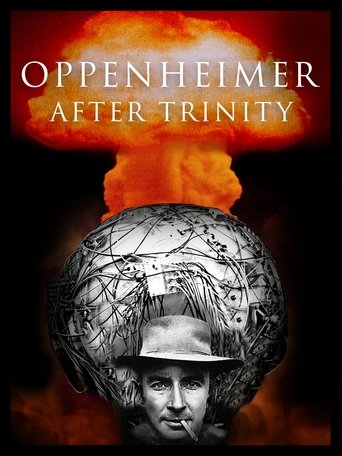
Oppenheimer After Trinity poster

Oppenheimer After Trinity (2023)

TMDb rating: 7.7/10

This captivating documentary on J. Robert Oppenheimer, the architect of the atomic bomb, explores his journey before the historic test and reveals the burden he carried after. De-classified documents, rare film footage and exclusive…

Subscription
Amazon Prime Video Subscription required
Amazon Prime Video with Ads Subscription required
Rent
Amazon Video Rental price varies
Apple TV Store Rental price varies
Google Play Movies Rental price varies
YouTube Rental price varies
Fandango At Home Rental price varies
Buy
Amazon Video Purchase price varies
Apple TV Store Purchase price varies
Google Play Movies Purchase price varies
YouTube Purchase price varies
Fandango At Home Purchase price varies
Free with ads
Fandango at Home Free Free with ads
Tubi TV Free with ads

Price note: exact rent/buy prices are not included by this data source. Subscription labels can be edited in the plugin settings.

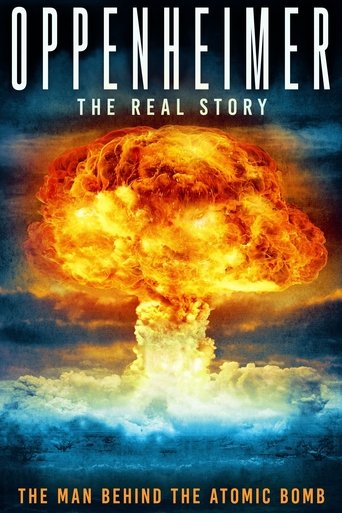
Oppenheimer: The Real Story poster

Oppenheimer: The Real Story (2023)

TMDb rating: 8.1/10

J. Robert Oppenheimer, a physics professor known for creating the atomic bomb during WWII. He witnessed the first atomic bomb detonation in New Mexico in 1945. This film examines Oppenheimer's life, from his early…

Subscription
Amazon Prime Video Subscription required
Amazon Prime Video with Ads Subscription required
Rent
Amazon Video Rental price varies
Apple TV Store Rental price varies
Google Play Movies Rental price varies
YouTube Rental price varies
Fandango At Home Rental price varies
Buy
Amazon Video Purchase price varies
Apple TV Store Purchase price varies
Google Play Movies Purchase price varies
YouTube Purchase price varies
Fandango At Home Purchase price varies
Free with ads
Fandango at Home Free Free with ads
Pluto TV Free with ads
Xumo Play Free with ads
Mometu Free with ads
Tubi TV Free with ads
Free
Hoopla Free to watch
Plex Free to watch
Plex Channel Free to watch
Fawesome Free to watch

Price note: exact rent/buy prices are not included by this data source. Subscription labels can be edited in the plugin settings.

This product uses the TMDb API but is not endorsed or certified by TMDb. Availability can change and should be verified on the provider site before subscribing, renting, or buying.

How to Set Up VLC for Optimal Video Quality
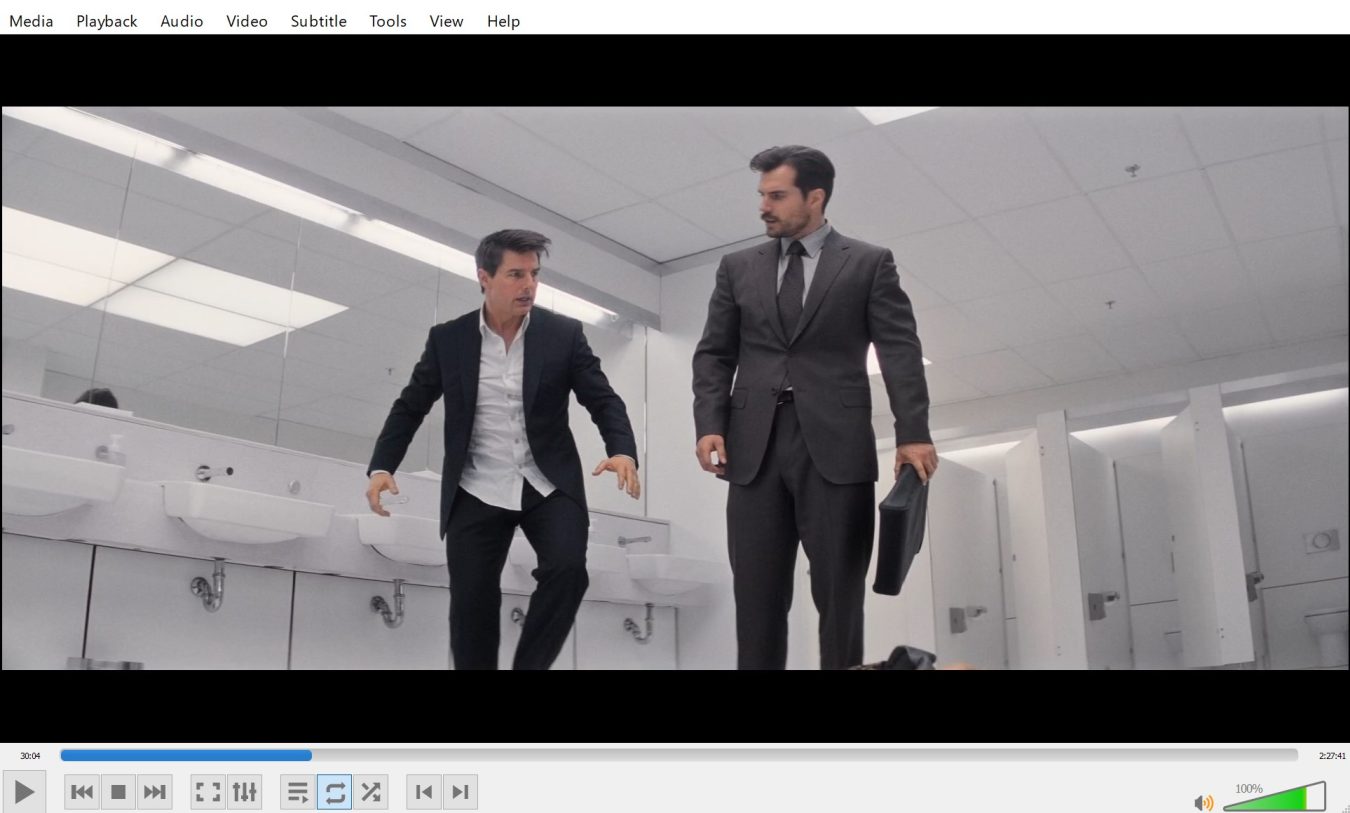
how-to-set up vlc for optimal video quality

If you love watching movies and TV shows on your computer, then you need a reliable media player that can handle all types of media files. VLC is a popular option because of its flexibility and wide range of features.

In this post, we’ll show you how to set up VLC for optimal video quality, so you can enjoy the best possible viewing experience.

How to Adjust Video Settings in VLC

The first step in setting up VLC for optimal video quality is adjusting the video settings. To do this, open the “Tools” menu and select “Preferences.”

Then, click on the “Video” tab and make sure the “Output” setting is set to “Automatic.” This will ensure that VLC automatically adjusts its video output settings based on your system’s hardware specifications.

Next, click on the “Filters” tab and make sure both the “Deinterlace” and “Postprocessing” options are enabled. This will help reduce motion blur and improve image sharpness.

You can also adjust the level of postprocessing by moving the slider next to it—the higher the number, the better your videos will look. Finally, click on the “Video Codecs” tab and make sure H264 is selected as your codec—this is one of the most efficient codecs available today, so it’s a good choice for most users.

Once you’ve finished making adjustments to these settings, close out of VLC’s preferences window and restart it to apply any changes you made. You should now see an improvement in your video quality immediately!

Finally, if you want an even better viewing experience from VLC, consider downloading some special plugins or filters that are designed specifically for improving video quality in VLC. There are plenty of free options available online; just be sure to download them from trusted sources only!

Conclusion:

With a few simple tweaks to its settings, VLC can provide an excellent viewing experience with crisp images and smooth transitions between scenes. By adjusting its output settings, enabling deinterlacing filters, applying postprocessing effects, and using an efficient codec like H264, you can get great results out of your videos with minimal effort.

Additionally, if you want even better results from VLC then consider downloading some special plugins or filters designed specifically for improving video quality in this media player—you might be surprised at what they can do! So why not give them a try today?