

How to Stop Buffering on Your Amazon Firestick
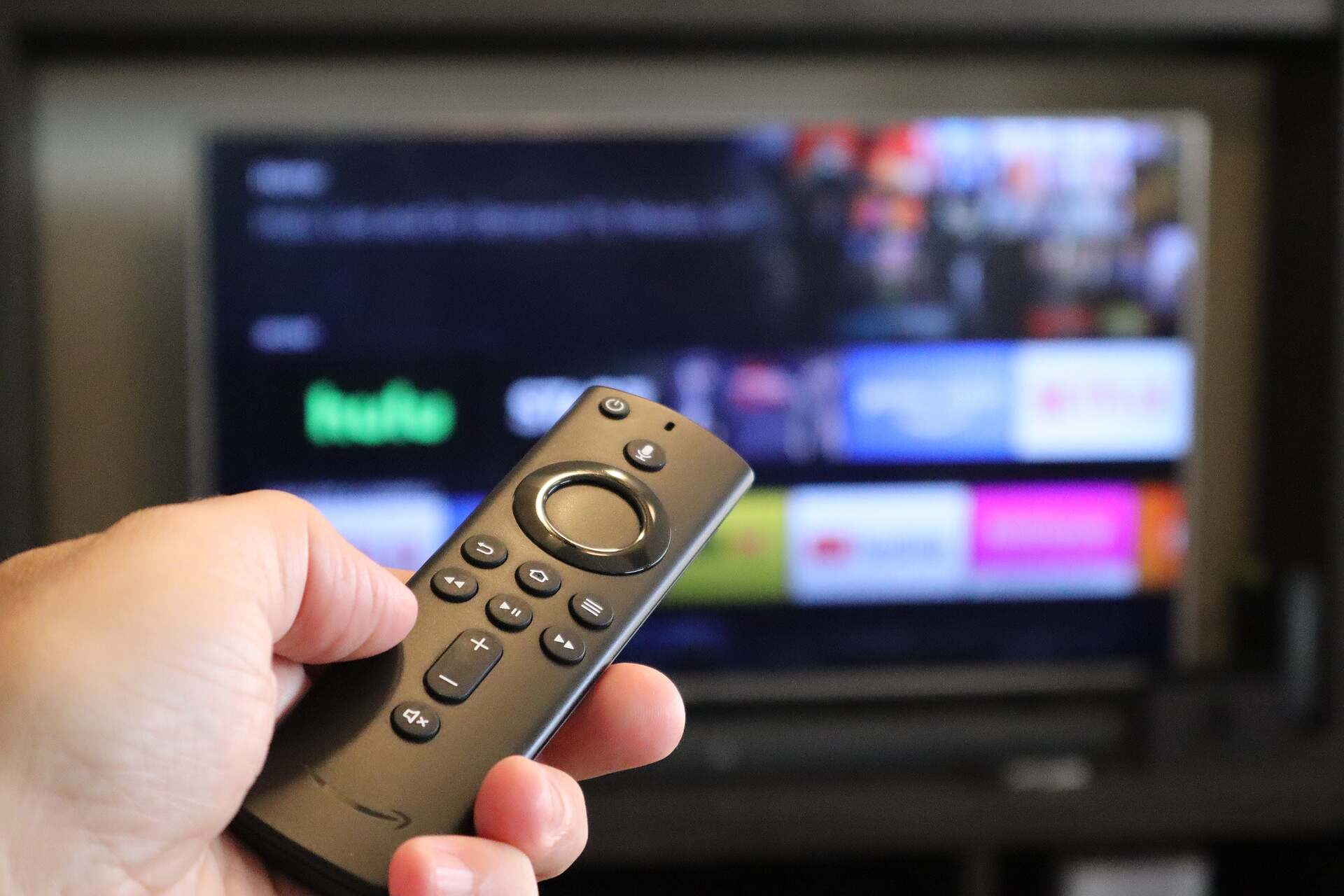
Is there anything more frustrating than watching your favourite TV Show or movie in 4K, then seeing your TV start to stutter?
If you are streaming that piece of content through a Firestick – then chances are, it’s having issues with the torrent of data. In most instances this stuttering can easily be fixed with a few tweaks here or there.
Just try any of our tried and true anti-buffering methods below:
Step #1 Disable Background Processes and Apps
- Manage Background Apps:
- Install an app like “Background Apps and Process List” from the Amazon App Store.
- Use it to close any apps running in the background that could be consuming bandwidth or processing power.
- Disable Automatic App Updates:
- Go to “Settings” > “Applications” > “Appstore.”
- Turn off “Automatic Updates” if your Firestick is struggling with multiple updates running in the background.
Step #2 Use a VPN for Streaming (Optional)
- Install a Trusted VPN:
- Sometimes ISPs throttle streaming speeds. Installing a VPN can help bypass this.
- Use a reputable VPN like ExpressVPN or NordVPN.
- Connect to a Fast Server:
- Connect to a server close to your geographic location for the best speed.
- Test different servers to find the fastest one for streaming.
Step #3 Reset Your Firestick (Last Resort)
- Factory Reset:
- If all else fails, consider a factory reset. Go to “Settings” > “My Fire TV” > “Reset to Factory Defaults.”
- This will erase all data on your Firestick, so only do this as a last resort.
- Reinstall Apps:
- After resetting, reinstall your essential apps and configure your settings again.
Step #4 Upgrade Your Firestick (If Necessary)
- Consider Upgrading:
- If you’re using an older Firestick model, upgrading to the latest version may solve buffering issues as newer models have more powerful processors and better Wi-Fi support.
- Choose the Right Model:
- The Firestick 4K Max is one of the best models in 2024, offering superior performance for streaming without buffering.