





The Best Settings in Vlc Media Player to Upscale Low Quality Content
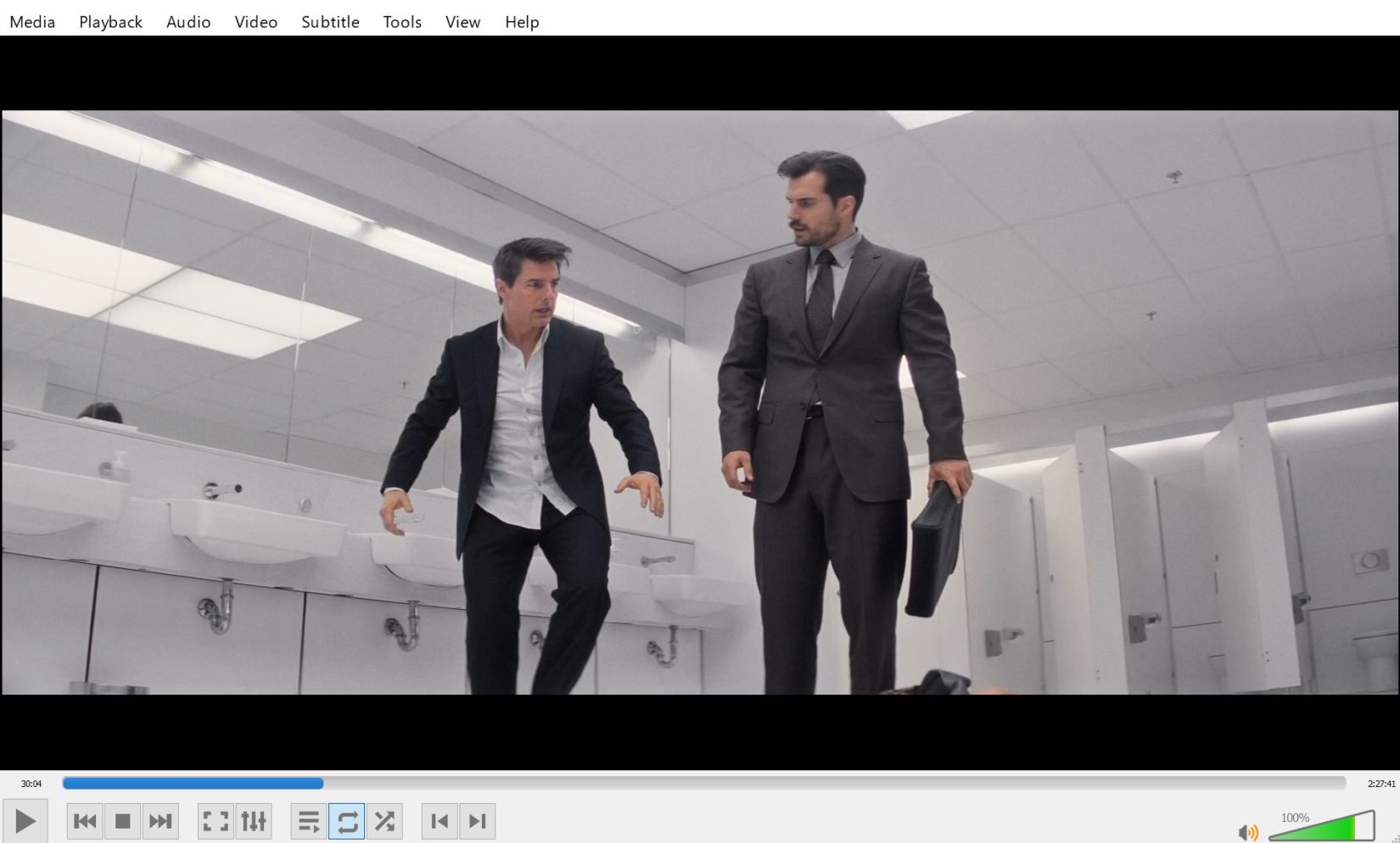
VLC Media Player is one of the most popular and versatile media players available today. One of its many useful features is the ability to upscale low-quality content, such as older videos or low-resolution footage. This can be particularly helpful when viewing content on modern high-resolution displays, which can sometimes make low-quality content look pixelated or blurry. In this article, we will discuss the settings you can use in VLC Media Player to upscale low-quality content.
Before we dive into the settings, it’s important to note that upscaling cannot add detail that isn’t already present in the source material. This means that while upscaling can improve the appearance of low-quality content, it cannot make it look as good as high-quality content. With that said, let’s take a look at the settings you can use in VLC Media Player to improve the appearance of low-quality content.
Upscale low quality content
- Open VLC Media Player and click on the “Tools” menu. Select “Preferences” from the drop-down menu.
- In the Preferences window, click on the “Video” tab.
- Under the “Video” tab, you will see several settings related to video playback. The first setting you should check is the “Output” setting. By default, VLC will use the “Automatic” output setting, which should work well for most users. However, if you are experiencing issues with upscaling, you can try selecting a different output setting, such as “OpenGL video output” or “DirectX video output.”
- The next setting to check is the “Deinterlace” setting. This setting controls how VLC handles interlaced video, which can appear jagged or flickering on modern displays. If your source material is interlaced, make sure this setting is set to “On.”
- Another useful setting is the “Sharpen” setting, which can help to bring out details in low-quality content. This setting can be found under the “Filters” tab in the Preferences window. Select “Video filters” and check the box next to “Sharpen.” You can then adjust the sharpening level to your liking.
- Finally, you can try using the “Upscale” setting to improve the resolution of low-quality content. This setting can be found under the “Video” tab in the Preferences window. Check the box next to “Enable video upscaling” and select a scaling method from the drop-down menu. The “Spline” method is generally recommended, as it provides the best balance between sharpness and smoothness.
In conclusion
VLC Media Player is a powerful tool for upscaling low-quality content. By adjusting the output, deinterlace, sharpen, and upscale settings, you can improve the appearance of your videos and make them look better on modern displays. Keep in mind that upscaling cannot add detail that isn’t already present in the source material, but with the right settings, you can make the most of what you have.